Guide
How to Set Up myGov and Link Your ATO, Medicare, and Centrelink
myGov is Australia's central government portal — one account that connects you to your tax, Medicare, super, and Centrelink. This guide walks you through the full setup in the right order, including exactly how to link the three services that matter most to migrants.
- An Australian mobile number for two-factor authentication
- Your passport (for identity verification in myID)
- Your Tax File Number (TFN) — to link the ATO
- Your Medicare card number and Individual Reference Number — to link Medicare (if enrolled)
- Your Centrelink Customer Reference Number (CRN) — to link Centrelink (if you have one)]
- All migrants, international students, and visa holders arriving in Australia
- Subclass 500 — International Students (need ATO + possibly Centrelink)
- Subclass 482 — Temporary Skill Shortage workers (need ATO + super)
- Subclass 485 — Graduate Temporary visa holders (need ATO + Medicare if eligible)
- Subclass 189 / 190 / 491 — Skilled visa holders (need ATO + Medicare + Centrelink)
- Subclass 417 / 462 — Working Holiday Makers (need ATO for tax return)
- Anyone needing to lodge their first Australian tax return via myTax]
Key topics covered
About SettleMate
SettleMate is an Australian settlement platform that helps new migrants, international students, and visa holders move to Australia with confidence using step-by-step guides and practical checklists.
This guide is part of SettleMate’s official settlement resources, created from real migrant experiences and current Australian requirements.
If there is one digital account you need to set up in your first week in Australia, it is myGov. Nearly every guide on SettleMate from tax to Medicare to superannuation eventually points back to myGov, because it is the central hub through which you access almost all Australian government services online. Without a myGov account, you cannot lodge your tax return through myTax, you cannot manage your Medicare claims digitally, you cannot view your superannuation contributions through ATO Online Services, and you cannot access Centrelink if you ever need it.
The good news is that setting up myGov is straightforward but only if you understand the sequence. Many migrants hit errors or get confused because they try to link services before setting up their account properly, or they don't understand what myID is and how it relates to myGov. This guide, put together by SettleMate, explains everything clearly and in the right order so you can get your full myGov setup done in a single sitting typically in under an hour.
📋 What This Guide Covers
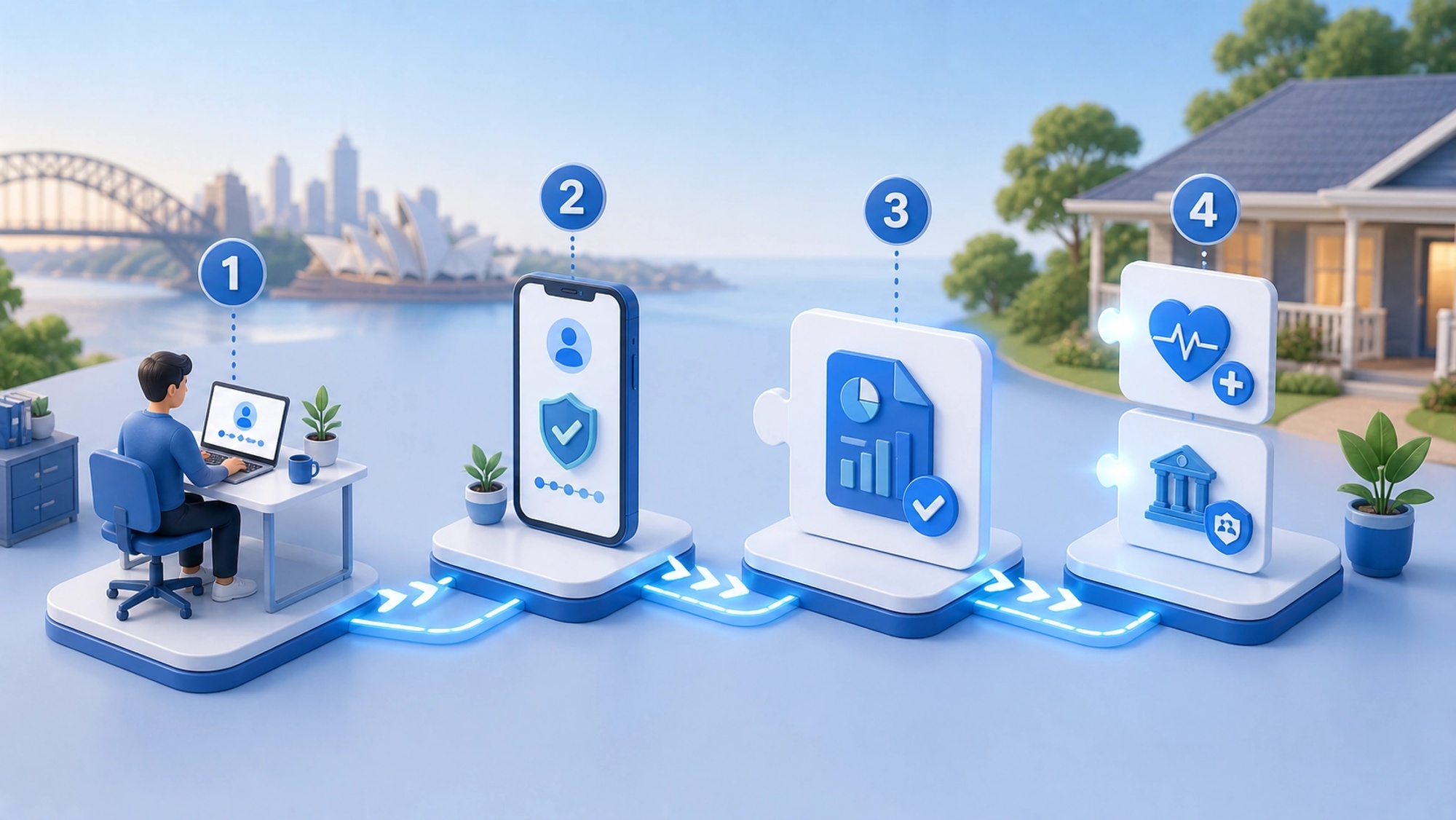
🏛️ STEP 1: What myGov Actually Is and What It Is Not

myGov (my.gov.au) is a secure online portal operated by the Australian Government through Services Australia. Think of it as a master key — one account that gives you access to more than a dozen government services, all without needing a separate username and password for each one.
Services you can link to myGov include the Australian Taxation Office (ATO), Centrelink, Medicare, Child Support, My Health Record, the National Disability Insurance Scheme (NDIS), Individual Healthcare Identifiers (IHI), Workforce Australia, and more.
For migrants, the three that matter most from Day 1 are:
- The ATO — to lodge your tax return, view your income statements, check your superannuation contributions, and manage all tax matters
- Medicare — to submit Medicare claims, track claim history, view your Medicare card details, and register for MyMedicare
- Centrelink — to access government payments and services if you are eligible, submit claims, and update your details
What myGov is NOT:
myGov is not a bank account, not a payment service, not a government ID card, and not a visa application system. It does not contain information about your immigration status that is managed separately through the Department of Home Affairs. It is purely a secure access portal to government online services.
A critical distinction that confuses many migrants:
After you've created your myGov account, you can start linking your government services, like Centrelink, Medicare and the Australian Taxation Office (ATO). Linking is a separate step from creating and each service has its own linking process. This guide walks through both.
SettleMate's Tip: SettleMate recommends setting up myGov in your first week in Australia — not because you will use all the services immediately, but because you need it in place before you can lodge your first tax return. Many migrants discover this in July when they try to file their return and realise they don't have a myGov account, causing delays in refunds. Setting it up early costs you one hour. Setting it up in a panic costs much more.
📱 STEP 2: myID — Australia's Digital ID App and Why It Matters
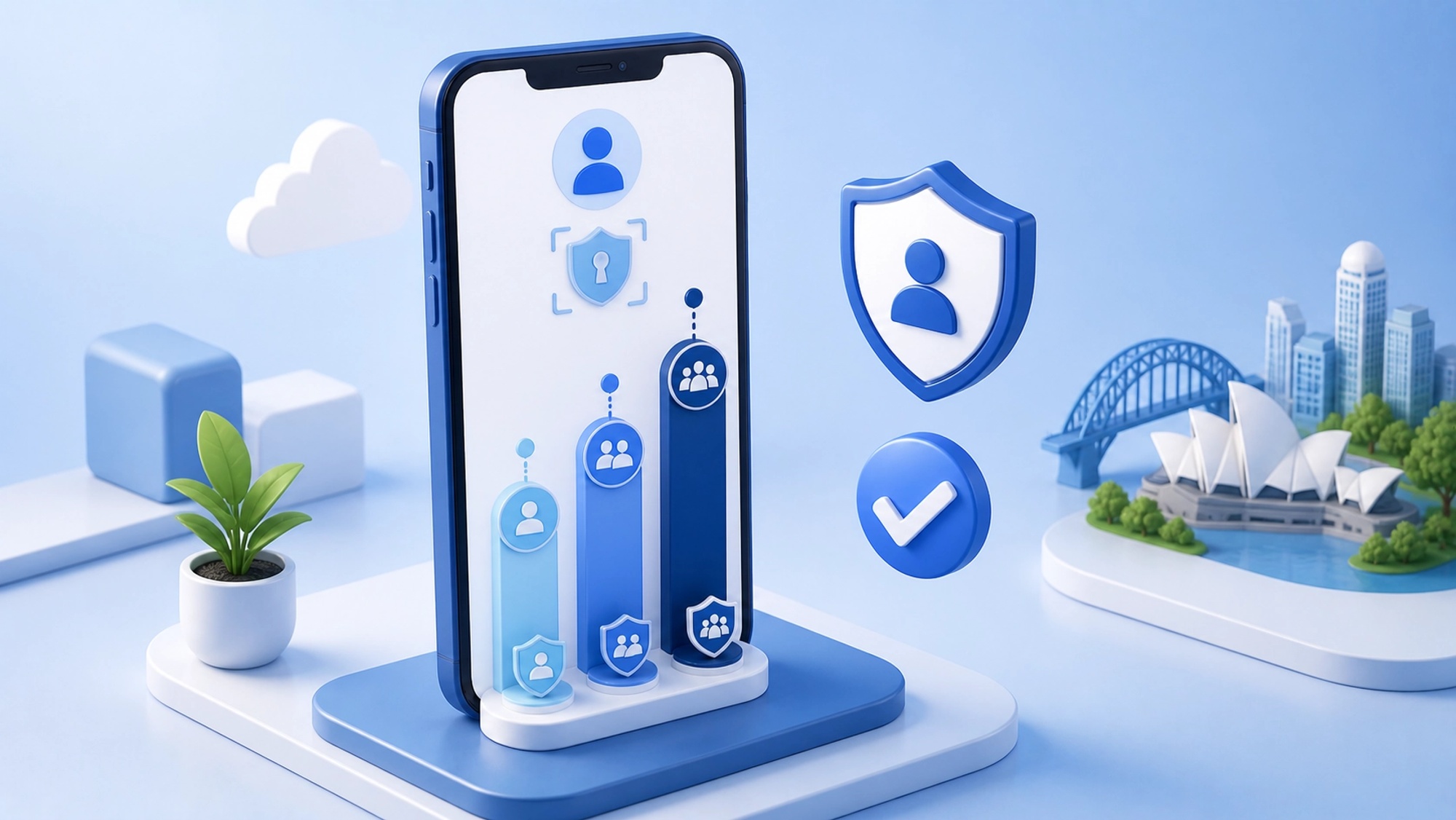
Before setting up myGov, you need to understand myID — because it has become the recommended and most secure way to create and sign into your myGov account, and it is now required for linking certain services like Centrelink.
myID (formerly called myGovID) is the Australian Government's Digital ID app. It allows you to securely prove who you are when accessing government online services. You can choose to connect your myID to your myGov account and use it as a sign in option.
Think of myID as a digital version of your passport or driver's licence — it verifies your identity once, then lets you prove who you are to any connected government service without repeatedly showing physical documents.
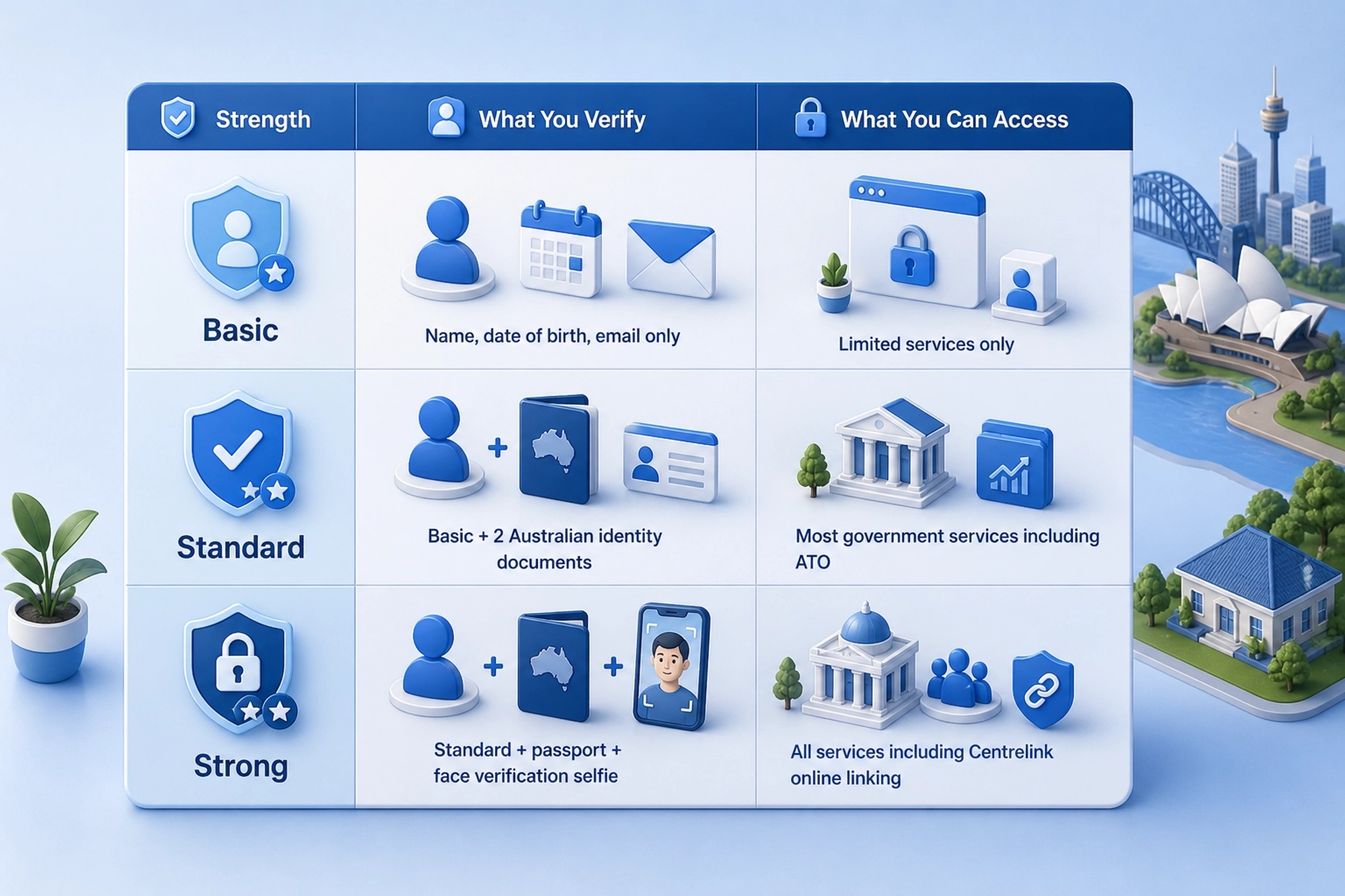
✅ The Three Identity Strength Levels
After entering your details you will have a Basic identity strength. Increasing your identity strength will better protect your Digital ID and allow you to access more services. Each online service has a minimum identity strength for access.
What documents do migrants need for Standard identity strength?
To set up a Standard strength Digital ID with myID, you will need to verify at least two Australian ID documents. This can include your visa and ImmiCard, or your driver licence and your Medicare card.
Your passport (including a foreign passport) counts as one document. Your visa details linked to your passport count as a second. This means most newly arrived migrants can achieve Standard identity strength using their passport and visa — without needing an Australian driver's licence or Medicare card.
For Strong identity strength:
For a Strong identity strength, you need to verify your ID with Australian identity documents and verify your photo. The app will guide you step-by-step to confirm you're a real person, the right person and verifying in real time. Specifically, you need an Australian passport (current or expired within 3 years) plus a face verification selfie. Most new migrants will not yet have an Australian passport, so Strong identity strength may not be immediately achievable and that is fine. Standard is sufficient for linking the ATO and Medicare.
Important note for migrants: Some individuals cannot achieve a Strong identity strength because they don't have an Australian passport, which is required. However, to access most government services, all you require is a myID with a Standard identity strength.
SettleMate's Tip: SettleMate recommends setting up myID to Standard identity strength as your first step — before creating your myGov account. Use your passport as Document 1 and your visa details as Document 2. This gives you a much more secure and flexible sign-in method than email-only, and it means you are not dependent on receiving SMS codes to a specific Australian mobile number. If you change your phone number, a myID-linked account remains accessible. An email-only account tied to SMS codes can be very difficult to recover.
✅ STEP 3: What You Need Before You Start
Attempting to set up myGov without these items ready will cause you to stop mid-process and potentially create errors. Have all of the following ready before you begin:
To create your myGov account:
- A personal email address that only you access — use this for life, not a university or employer address
- An Australian mobile number (for SMS verification codes) — OR the myID app if you choose the Digital ID route
To set up myID to Standard strength:
- Your passport (any nationality, current)
- Your visa details (as recorded with the Department of Home Affairs) — these are linked to your passport number
To link the ATO:
- Your Tax File Number (TFN)
- One of the following for identity questions: a payment summary/income statement from the last 2 years, a Centrelink payment summary, a dividend statement, or a notice of assessment from the ATO
To link Medicare (if enrolled):
- Your Medicare card number (the 10-digit number on the front)
- Your Individual Reference Number (IRN) — the digit appearing next to your name on the card
To link Centrelink (if applicable):
- Your Centrelink Customer Reference Number (CRN) — on any Centrelink letter or concession card if you have previously engaged with Centrelink
- OR your Medicare card details + 2 identity documents if you have no CRN
SettleMate's Tip: SettleMate recommends using a personal Gmail or Outlook address you have had for years — not one issued by your university, employer, or internet provider. If you lose access to a university email when you graduate, or an employer email when you change jobs, recovering your myGov account becomes a significant administrative problem. The email you use for myGov is one you should plan to keep indefinitely.
💻 STEP 4: How to Create Your myGov Account
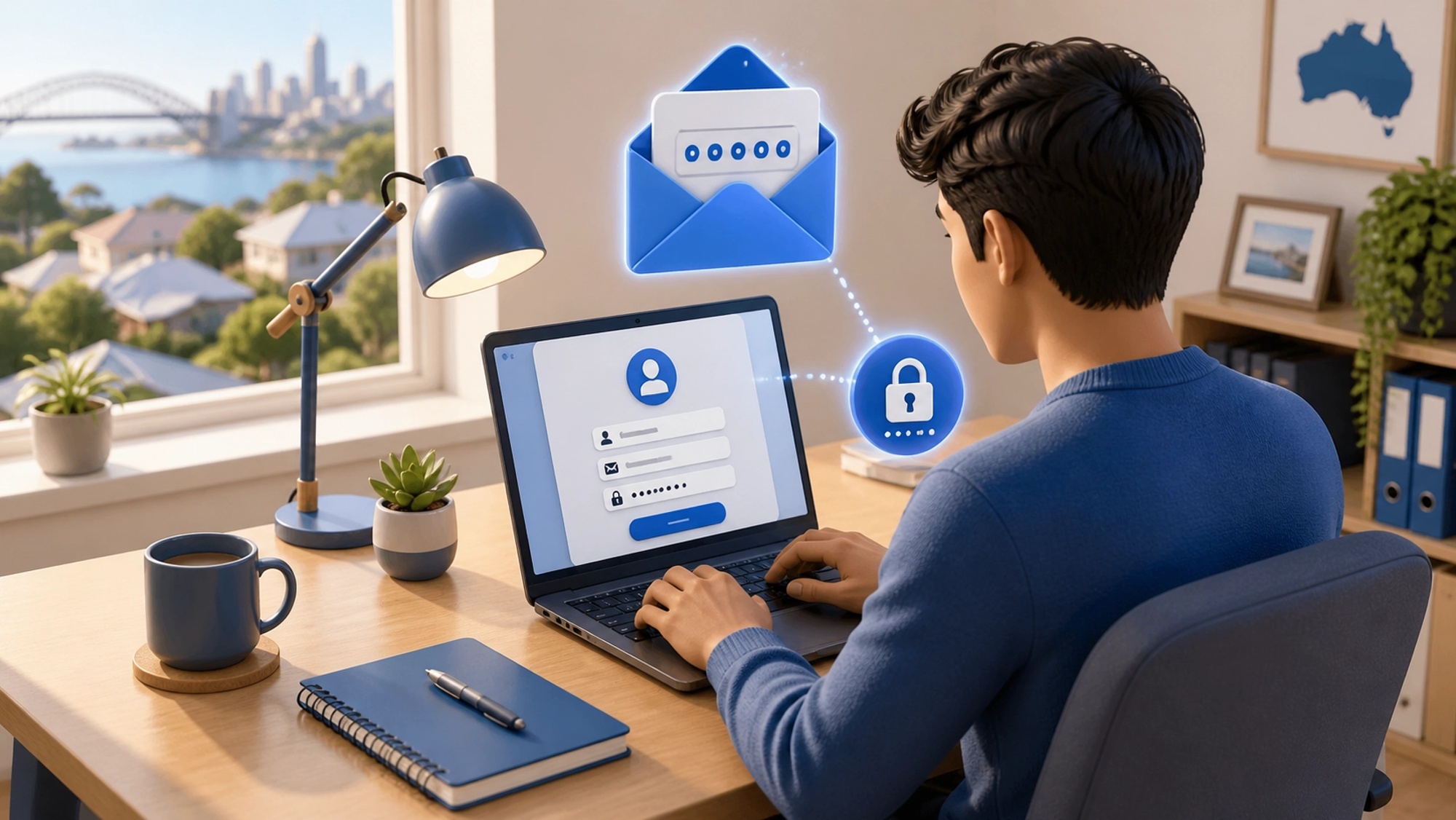
Important: You can't create a myGov account in the myGov app. You need to create a myGov account on the myGov website before you set up your myGov app. Always start at my.gov.au in a browser.
✅ Option A: Create with Email (Standard method)
You can create a myGov account using your email address, or a Digital ID. Go to myGov and select Create account. Select Continue with email and read the Terms of use and myGov privacy notice. If you understand and agree to the Terms of use, select Next. Enter your Email address and select Next. Enter the Code sent to your email, then select Next. Enter your Mobile number (optional) and select Next. Enter the Code sent to your mobile phone and select Next. Enter a Password and then Re-enter password. Create your 3 Secret questions and answers.
After creating with email, immediately upgrade your sign-in security:
For your security, you can't use Answer a secret question as your sign in option when linking to or accessing ATO online services. If you selected this, you'll need to update your myGov sign in option. This means after creating your account with email, you should connect it to myID or enable SMS-based two-factor authentication before you attempt to link the ATO — otherwise the ATO linking step will fail.
✅ Option B: Create with myID (Recommended by ATO)
The ATO recommends using myID, the Australian Government's Digital ID app, as your sign in option. Download and set up the app to a Strong or Standard identity strength. Then use it to create your myGov account.
To use this option:
- Set up your myID app first (see Step 2) to at least Standard strength
- Go to my.gov.au and select Create account
- Select Continue with Digital ID
- Follow the prompts to connect your myID to your new myGov account
Using your myID to link to or access ATO online services gives you a flexible sign in option, your myID isn't locked to a specific mobile number or device, and can be set up again using only an internet connection if you get a new phone. It also provides better account security unlike multifactor authentication, myID requires you to verify your ID in the app making it harder for fraudsters to impersonate you.
After creating your account:
Your myGov account is now created but empty, like a key ring with no keys. The next steps add the services (the keys).
SettleMate's Tip: SettleMate strongly recommends choosing Option B — creating your myGov account using myID — if at all possible. The email-only method works, but it creates a dependency on receiving SMS codes to a specific Australian phone number. Many migrants change SIM cards, phone numbers, or phones in their first year. Recovering a myGov account when you no longer have access to your original SMS number is difficult and time-consuming. myID removes this dependency entirely.
🧾 STEP 5: Setting Up myID — Your Digital Identity
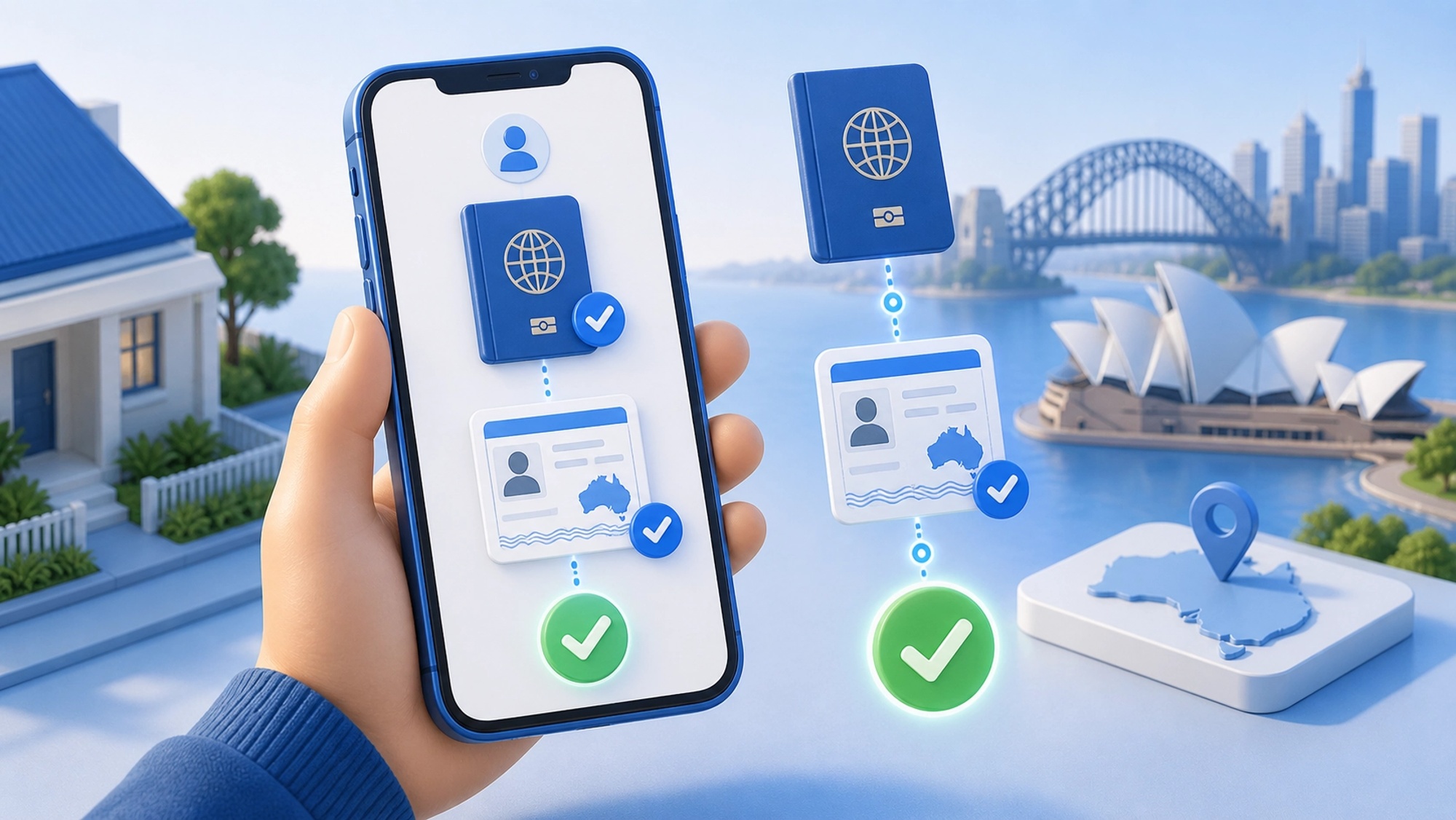
To set up myID, you need: a smart device — the myID app is compatible with most smart devices such as smartphones and is only available from the Apple App Store or Google Play; a personal email address — as it's your personal Digital ID, your ID documents will be linked to the email you choose, and it should not be a shared or work email address; and you must be 15 years or older.
✅ Step-by-Step: Setting Up myID to Standard Strength
Step 1: Download the myID app from the App Store (iPhone) or Google Play (Android). Only download the myID app from the official app stores.
Step 2: Open the app and select Set up myID.
Step 3: Enter your full legal name exactly as it appears on your passport, your date of birth, and your personal email address.
Step 4: You will now have Basic identity strength. To upgrade to Standard, select the option to verify identity documents.
Step 5: Verify Document 1 — your passport. The app will scan and verify your passport details.
Step 6: Verify Document 2 — your visa. Select the visa option in the app. You will need your passport number and visa grant number as they appear in your VEVO record (Visa Entitlement Verification Online).
Step 7: Once both documents are verified, your myID will show Standard identity strength.
Key rules for myID setup:
- The most important requirement when setting up your myID is to ensure your name matches your identity documents. Enter your name exactly as it appears on your passport — middle names, hyphens, and all.
- You should always use a personal email address in your myID app that only you have access to. If you set up your myID with a work or business email address and change jobs, you could lose access to your myID.
- Do not set up myID twice with the same documents. Your identity documents are linked to your myID email address and cannot be used to set up a second myID with a different email.
🏦 STEP 6: Linking the ATO — Tax, Super, and myTax

Linking the ATO to your myGov account is the step that unlocks your ability to lodge tax returns, view your income statements, check super contributions, update your TFN details, and access the ATO app.
✅ What You Can Do Once the ATO Is Linked
- Lodge your annual tax return via myTax — free, online, pre-filled
- View your income statement (replaces the old payment summary)
- Check that your employer's super contributions are being reported correctly
- Update your bank account details for tax refunds
- View and manage your HECS-HELP debt if applicable
- Apply for a TFN online (if using myID with Standard or Strong strength)
- Access your tax correspondence in your myGov Inbox
✅ How to Link the ATO — Step by Step
Step 1: Sign in to myGov at my.gov.au.
Step 2: Select View and link services from your myGov home screen.
Step 3: Find the Australian Taxation Office tile and select Link.
Step 4: Follow the prompts. To link your myGov account to the ATO you must sign in using one of the following: myID (recommended) — set up to a Strong or Standard identity strength; get a code by SMS using an Australian mobile number; or the myGov Code Generator app to generate a one-time code.
Step 5: You will be asked identity verification questions. The ATO will ask you to confirm information they already hold about you. This might include:
- Your TFN
- Details from a payment summary or income statement from the last 2 years
- Details from a notice of assessment if you have previously lodged a return
For most new migrants who have never dealt with the ATO before, you will use your TFN plus any available confirming information. If you have just arrived and have no prior ATO history, you may be asked to call the ATO on 13 28 61 to complete linking over the phone.
Step 6: Once linked, the ATO tile will appear as connected on your myGov home screen.
SettleMate's Tip: SettleMate recommends linking the ATO to myGov within the same week you receive your TFN — not waiting until tax time. Having the link established in advance means that when July arrives and your income statement is ready, you can log straight in and lodge. Migrants who try to set everything up in October (deadline month) often find errors, lockouts, or delays that would have been simple to fix earlier.
🏥 STEP 7: Linking Medicare — Manage Your Health Claims Online
Linking Medicare to myGov allows you to manage all your Medicare activities digitally — submitting claims, viewing claim history, ordering replacement cards, checking safety net thresholds, and registering for MyMedicare. You must be enrolled in Medicare before you can link it.
Before you link: If you're not enrolled in Medicare, you won't be able to link it to your myGov account. Find out how to enrol in Medicare first. See SettleMate's full Medicare guide for the enrolment process.
✅ What You Can Do Once Medicare Is Linked
- Submit Medicare claims and receive rebates directly to your bank account
- View your claims history and Medicare Safety Net balance
- Order a replacement Medicare card digitally
- Access your digital Medicare card via the myGov app immediately
- Register for MyMedicare (voluntary practice registration)
- Check your Medicare levy entitlement statement
✅ How to Link Medicare — Step by Step
Step 1: Sign in to myGov at my.gov.au.
Step 2: Select View and link services.
Step 3: Find the Medicare tile and select Link.
Step 4: Select Link Medicare to myGov.
Step 5: We'll ask you some questions to make sure we match the correct Medicare record to your myGov account. We'll ask you if you know your Medicare card and Individual Reference Number and if you have a linking code.
Step 6 — Using your Medicare card (most common):
- Select Yes to "Do you have your Medicare card and Individual Reference Number?"
- Enter your 10-digit Medicare card number — enter all digits without spaces
- Enter your Individual Reference Number (IRN) — the number next to your name on the card
- Answer the verification questions presented
Step 6 — Using a linking code (if card method fails): A linking code is a single use code we give you to link Medicare to your myGov account. You can get a linking code by calling Medicare or at a service centre. Call Medicare on 132 011 to receive a linking code if you cannot complete the card-based verification.
Step 7: Once linked, Medicare will appear as a connected service in your myGov account.
Name matching — the most common error: To link Medicare to your myGov account, your name recorded with myGov must match your name with Medicare. If your name doesn't match or isn't up to date, you'll need to update it. If you get a name mismatch error, call Medicare on 132 011 to verify and update your recorded name before trying again.
SettleMate's Tip: SettleMate recommends linking Medicare to myGov on the same day you receive your physical Medicare card in the mail — not before, since you need the card number and IRN. Once linked, download the myGov app and your digital Medicare card will be available immediately. This digital card is accepted everywhere a physical card is accepted, and you will never need to carry the physical card again.
🏢 STEP 8: Linking Centrelink — Access Government Payments and Services
Most migrants working full-time will not need Centrelink immediately — it is the government agency that manages payments for people who are unemployed, studying, or caring for dependants. However, some migrants are eligible for certain Centrelink payments depending on their visa type, and linking it is straightforward when needed.
Centrelink eligibility for migrants: Centrelink payments are generally available to Australian citizens and permanent residents. Some temporary visa holders (particularly partner visa applicants and some humanitarian visa holders) may also be eligible for specific payments. Confirm your eligibility at servicesaustralia.gov.au or with a registered migration agent before applying.
✅ What You Can Do Once Centrelink Is Linked
- Submit claims for eligible payments online
- Report your income for Centrelink purposes
- Update your personal details
- Access the digital Services Australia app for Centrelink management
- View your Customer Reference Number (CRN)
✅ How to Link Centrelink — Step by Step
There are 4 ways to link Centrelink to your myGov account:
Method 1 — Digital ID (recommended, requires Strong myID): To link Centrelink, you need to have a strong level Digital ID. This is the most secure method and allows you to create a new Centrelink record if you have never interacted with Centrelink before.
Method 2 — Identity verification (no CRN needed): To link Centrelink with identity verification, you'll need your Medicare card details and 2 identity documents such as an ImmiCard issued by Department of Home Affairs. This is the best option for most migrants who have Medicare linked but no existing Centrelink history.
Method 3 — CRN (if you have one): If you have previously received a Centrelink payment or concession card, you will have a CRN. If you've claimed a payment before, you can use your Centrelink Customer Reference Number (CRN) to link Centrelink to myGov. Your CRN appears on any Centrelink letter.
Method 4 — Linking code: A linking code is a single use code we give you to link Centrelink to your myGov account. You can get a linking code over the phone or at a service centre.
For most new migrants with no prior Centrelink history, Method 2 (identity verification) is the practical path. Have your Medicare card and your passport or ImmiCard ready.
SettleMate's Tip: SettleMate recommends that most migrants on skilled or student visas link Centrelink to myGov proactively — even if you don't currently need it — so that the link is already in place if your circumstances change. Job loss, visa transitions, or unexpected situations can make Centrelink access suddenly important, and setting it up in advance means you can access services immediately rather than during a stressful period when you most need them.
📱 STEP 9: The myGov App — Managing Everything From Your Phone
Once your myGov account is created and services are linked on the website, download the myGov app for day-to-day access.
Available on: Apple App Store and Google Play — search "myGov" (official app by Services Australia).
When you have a myGov account, you access the same account through the myGov app. It is the same account — not a separate one.
What the myGov app lets you do:
- Access your digital Medicare card (accepted everywhere a physical card is)
- Submit Medicare claims from your phone instantly after a doctor's visit
- Check your tax correspondence in your myGov Inbox
- View your Centrelink payment details
- Access government notifications in real time
Setting up the app:
- Download from the official app store
- Open and sign in using your myGov credentials or myID
- Enable biometric sign-in (fingerprint or Face ID) for fast, secure access
- Your linked services will automatically appear in the app
SettleMate's Tip: SettleMate recommends enabling Medicare in the myGov app as your very first action after downloading. Your digital Medicare card is available immediately in the app once Medicare is linked, and it is accepted at every GP, specialist, and hospital across Australia. You can leave your physical Medicare card safely at home from day one. When you visit a doctor, simply open the app and show your card on screen.
📬 STEP 10: The myGov Inbox — Check It Regularly
The myGov Inbox is the official channel through which Australian government agencies communicate with you digitally. Once your services are linked, your ATO notices, Medicare notifications, and Centrelink correspondence will arrive here — not to your personal email.
What arrives in your myGov Inbox:
- ATO: Notices of Assessment (your annual tax result), activity statements, TFN correspondence
- Medicare: Claim confirmations, safety net notifications, card renewal reminders
- Centrelink: Payment summaries, compliance notices, request-for-information letters
Why this matters: Missing a message in your myGov Inbox can have real consequences. An ATO notice of amended assessment, a Centrelink request for information, or a Medicare compliance check all require responses within specific timeframes. Many migrants miss these because they don't realise their myGov Inbox is where government correspondence now goes.
Set up myGov Inbox notifications: In your myGov account settings, configure email or push notification alerts so you are notified when a new message arrives. This way you never miss a time-sensitive notice.
SettleMate's Tip: SettleMate recommends checking your myGov Inbox at least once a month — not just at tax time. The ATO sends important correspondence throughout the year, including requests for information about deductions, notices about HECS repayment thresholds, and tax debt notices if anything is owing. Treating your myGov Inbox the same way you treat your regular email inbox is one of the simplest habits that protects your tax compliance.
🛠️ STEP 11: Troubleshooting — What to Do When Linking Fails
Even when you follow all the steps correctly, errors can occur. Here are the most common ones migrants encounter and how to resolve them.
🔴 "Your name doesn't match" error
This happens when the name stored in myGov does not exactly match the name recorded with the service you are trying to link.
Fix: Check how your name appears in myGov (My Account → Profile). Then contact the relevant agency — Medicare on 132 011 or Centrelink on 136 240 — to confirm and update your name with them. Changes may take overnight to update in the system.
🔴 ATO linking fails — "we can't verify your identity"
This usually happens for migrants who have no prior ATO history (no previous tax return, no income statement on file).
Fix: Call the ATO on 13 28 61. They can verify your identity over the phone using your passport details and TFN, and manually complete the link to your myGov account.
🔴 Medicare linking fails — "we can't find your Medicare record"
This can happen if Medicare enrolment is still being processed, or if there is a data mismatch.
Fix: If you need help linking your myGov account, including linking codes, call the myGov online services support hotline. For Medicare specifically, call 132 011. They can issue a linking code that bypasses the online identity questions.
🔴 Locked out of myGov after too many failed attempts
This occurs when you've had 3 failed attempts to link to a service. For security purposes, you won't be able to link for one hour. Try again after the one-hour lockout has expired.
Fix: Wait one hour, then carefully re-read the format requirements for each field before attempting again.
🔴 Lost access to your myGov account (forgotten password or lost phone number)
Fix: Go to my.gov.au and select Forgot your username or Forgot your password. If you have myID set up, you can recover access without needing your original phone number. If you have neither, call the myGov helpdesk on 13 23 07.
SettleMate's Tip: SettleMate's most important troubleshooting advice: if any linking attempt fails after two tries, stop and call the relevant agency directly rather than attempting repeatedly. Three failed attempts locks you out for an hour, and repeated lockouts can trigger security holds. A five-minute phone call with Medicare (132 011), the ATO (13 28 61), or Centrelink (136 240) almost always resolves linking issues faster than continuing to retry online.
🔒 STEP 12: Security — How to Protect Your myGov Account
Your myGov account is one of the most sensitive online accounts you will have in Australia. It is connected to your tax, healthcare, and potentially your government payments — meaning it is a prime target for identity theft and fraud.
✅ Essential Security Rules
Use myID whenever possible. It is more secure than password-plus-SMS because it requires biometric or app-based verification that is much harder to intercept than an SMS code.
Never share your myGov password with anyone. No government agency — the ATO, Medicare, Centrelink, or Services Australia — will ever call you and ask for your myGov password or verification code. Any caller requesting this is a scammer.
The government will never send you a link by SMS or email to log into myGov. This is one of the most common scams in Australia. If you receive a text or email with a link to "verify your myGov account" or "claim a tax refund," it is a scam. Always access myGov by typing my.gov.au directly into your browser.
Enable notifications for your myGov Inbox so you are alerted to any unexpected activity.
Keep your contact details updated. If your phone number or email address changes, update them in myGov immediately — before you lose access to the old accounts. Outdated contact details are the most common cause of account lockout.
📌 Official & Trusted Resources
This guide is informed by:
- myGov — my.gov.au (account creation, linking services, myGov app, myGov Inbox)
- myID — myid.gov.au (Digital ID setup, identity strength levels)
- Services Australia — Create an online account — servicesaustralia.gov.au/create-online-account
- ATO — Create a myGov account and link to the ATO — ato.gov.au/online-services/ato-online-services-and-mygov
- Services Australia — Link Medicare to myGov — servicesaustralia.gov.au/mygov-help-link-medicare-to-mygov-with-your-medicare-card
- Services Australia — Link Centrelink to myGov — servicesaustralia.gov.au/mygov-help-link-centrelink-to-mygov-using-your-digital-id
- Digital ID System — digitalidsystem.gov.au
Disclaimer
This guide is provided for general informational purposes only. While SettleMate strives to keep all information accurate and up to date, digital government platforms including myGov, myID, and linked services are updated frequently and processes may change. This content does not constitute legal, migration, tax, or financial advice. SettleMate is not a registered migration agent or registered tax agent. Always verify current steps through the official myGov website at my.gov.au and the relevant agency websites.
Sharing & Usage
This guide is original content created by SettleMate. You are welcome to share, link to, or quote this guide for personal, educational, or non-commercial purposes, provided SettleMate is clearly credited as the source.
© SettleMate. All rights reserved.
www.settlemate.au
Made with ❤️ for immigrants in Australia
Let's chat like humans, not forms
Answer a few quick questions and we'll route your note to a certified expert, no matter where you are in the world.
SettleMate Response Promise
Every conversation is reviewed by a specialist within 24 hours (often much sooner), and you'll always get a personalised next step.
- Thoughtfully reviewed by a real specialist.
- Personalized replies tailored to your unique situation.
- Actionable next steps, delivered clearly after each consultation.
Need something faster?
Reach us directly
Prefer a quick reply? Use any of the touchpoints below and our concierge team will jump in.